Instructions
A complete guide to editing content, managing assets, and tailoring Aromax to your brand.
of GSAP
This template uses GSAP (with the ScrollTrigger plugin) for the animated statistics. GSAP + ScrollTrigger are loaded in the project — keep those in place or the effect won't run. The count-up attribute referenced below must stay intact for the code to find the right elements.
Where the code lives
- Project Settings → Custom Code
- Place it in the (Footer code) section
This script enables smooth scrolling throughout the website, creating a more fluid and refined navigation experience while maintaining compatibility with GSAP animations.
<script>
  // Smooth Scrolling
  document.addEventListener('DOMContentLoaded', function () {
    const lenis = new Lenis({ duration: 1.6 });

    lenis.on('scroll', ScrollTrigger.update);
    gsap.ticker.add((time) => {
      lenis.raf(time * 1000);
    });
    gsap.ticker.lagSmoothing(0);
  });
</script>This template includes a global script that makes any number count up from zero when it scrolls into view that resolves as the number settles into place. It's used for the proof stats throughout the template. Each counter runs once — the first time it enters the viewport.
<script>
  // Counter
  document.addEventListener('DOMContentLoaded', () => {
    if (typeof gsap === 'undefined') {
      console.warn('GSAP is not loaded.');
      return;
    }

    if (typeof ScrollTrigger === 'undefined') {
      console.warn('ScrollTrigger is not loaded. Enable it in Webflow GSAP settings.');
      return;
    }

    gsap.registerPlugin(ScrollTrigger);

    const counters = document.querySelectorAll('.stat-count-number');

    counters.forEach((counter) => {
      const target = parseFloat(counter.textContent.trim());
      const value = { current: 0 };

      counter.textContent = '0';

      ScrollTrigger.create({
        trigger: counter,
        start: 'top 85%',
        once: true,

        onEnter: () => {
          gsap.to(value, {
            current: target,
            duration: 2,
            ease: 'power2.out',

            onUpdate: () => {
              counter.textContent = Math.round(value.current);
            },
          });
        },
      });
    });
  });
</script>Make Dark Mode Permanent
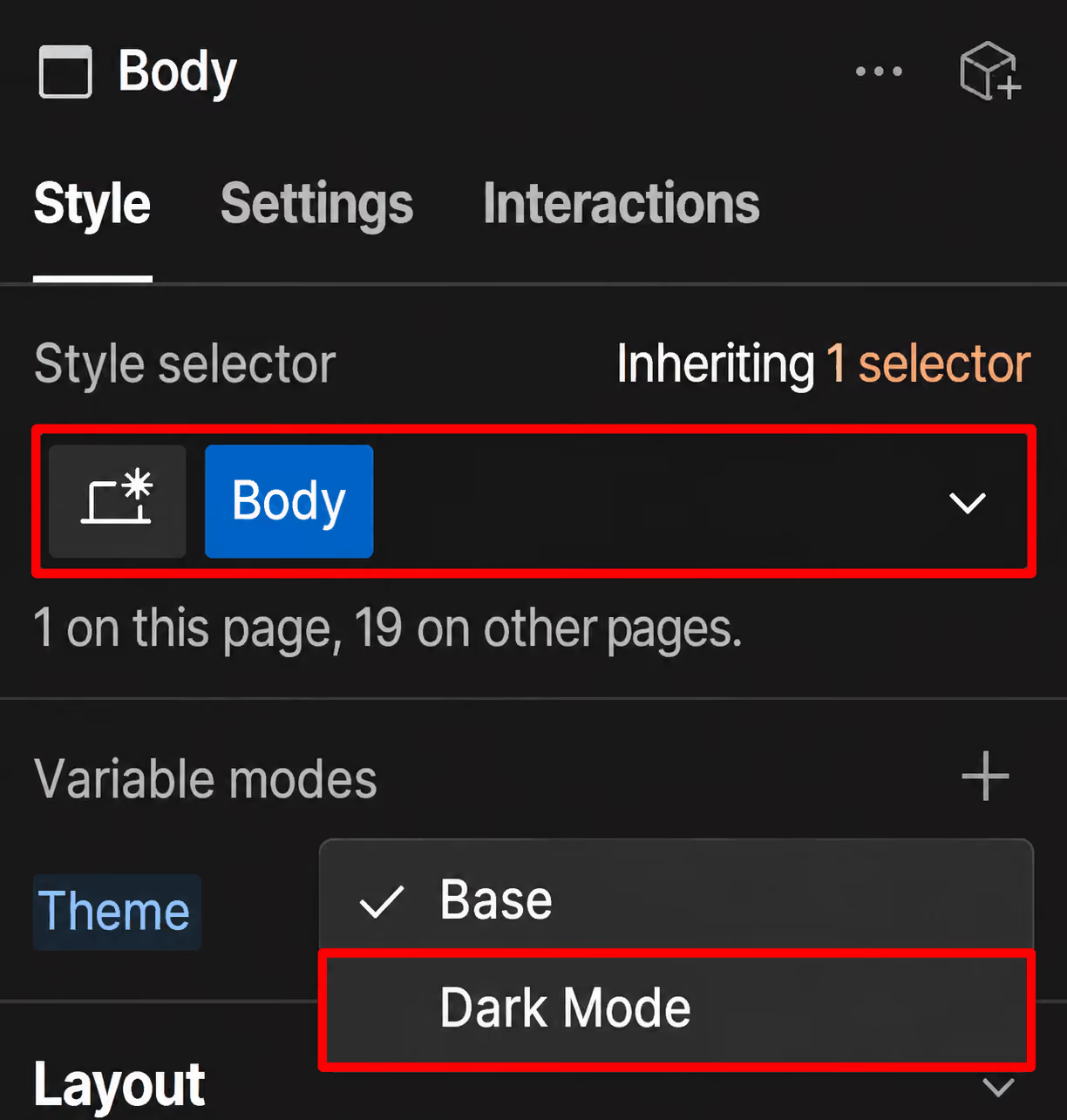
-Select the Body element in Webflow.
-Open the Theme variable mode dropdown — it currently says Base.
-Select Dark Mode.
-Your template will now use the Dark Mode styles by default.